

Why extract from images?
Photography has already solved the hard problem of color harmony. A well-composed photograph — or a painting, a textile scan, an architectural photo — has colors that work together because they exist together in the physical world. Light, shadow, and material reflectance have already produced a coherent set.
Extracting those colors gives you a starting palette that feels grounded and purposeful. It is not a shortcut — it is a constraint. The palette tells you what colors go together; your job is to assign them roles.
How extraction algorithms work
Most color extraction tools use a variant of median cut or k-means clustering. Both aim to reduce millions of pixels to a small representative set:
- Median cut recursively splits the color space into boxes along the axis of greatest range, and takes the average of each box. Fast, deterministic, produces balanced results.
- k-means iteratively assigns pixels to cluster centres and moves the centres to the mean of their cluster. Slower, can converge differently on each run, but can emphasise saturated colors.
The uicorn Color Palette from Image tool uses Median Cut on a downscaled image. The downscale is fast and the algorithm is deterministic — the same image always produces the same palette. Subtle gradients or low-frequency hues may not appear if they are not dominant in the pixel distribution.
The extraction workflow
1. Choose the right image. Photographs with a clear subject and limited background clutter produce the most usable palettes. A photo of a forest produces many similar greens; a photo of a market stall produces a rich, varied set.
2. Check for dominance. The algorithm will find the dominant colors — which may be sky, skin tone, or background. If those are not what you want, consider cropping before extraction.
3. Treat the output as raw material. Extracted colors are exact pixel values. You will almost always need to adjust them slightly for use in design — nudging lightness for accessibility, slightly desaturating for screens, or shifting a hue to avoid a trademark conflict.
4. Use Lab as your reference. The tool reports each extracted color in Lab D50 alongside HEX and OKLCH. When adjusting colors, work in Lab — changing L moves lightness without shifting hue, which lets you create tints and shades that stay true.
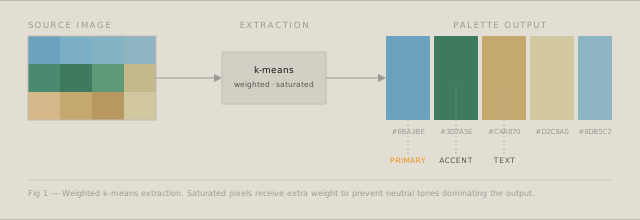
Assigning roles to extracted colors
A raw extraction gives you colors, not a system. Assigning roles is what turns it into a palette:
| Role | What to look for |
|---|---|
| Primary | Most saturated, most distinctive color |
| Background | Lightest or most neutral color |
| Accent | High-chroma color that contrasts with primary |
| Text | Darkest color — check WCAG contrast against background |
| Surface | Mid-tone neutral for cards and containers |
From palette to press
The tool gives you a CMYK (sRGB) value for every extracted color directly in the selected color panel — no need to leave the page. This is a mathematical sRGB model: a reasonable first estimate, but it does not account for press conditions, dot gain, or paper stock.
For directional print work, that value is often enough to start a conversation with a printer or check whether a color is broadly achievable in CMYK. For production use, take the HEX value to Illustrator or Photoshop, assign your target ICC profile (Fogra39 for EU coated offset, Fogra51 for uncoated, SWOP v2 for North American coated), and soft-proof there.
Editing before export. If an extracted color is close but not quite right — a shadow that reads too warm, a sky that needs to be purer — click the swatch in the detail panel. A native color picker opens. Adjust the color live; all values update immediately. Use the Name field to label each swatch before export; names carry through to ASE, CSS, JSON, and SVG files. If you want to start fresh, the ↺ Reset button restores the original extracted palette.
Export options. Choose RGB, CMYK (sRGB), or both from the checkboxes before downloading. ASE exports the selected color models for direct import into Adobe Swatches. CSS exports custom properties. JSON and SVG include all values.
Privacy: why local processing matters
The tool processes images entirely in the browser using the Canvas API. No image data is sent to any server. This matters in two practical situations: client confidentiality (if you are working with unreleased brand photography) and GDPR compliance (if the images contain people).
The privacy notice in the tool is not boilerplate. The extraction runs entirely in your browser — the server sees no pixel data, no image file, nothing. For unreleased brand photography or any image containing people, this is the only acceptable workflow.
Drop any image into the Color Palette from Image tool to extract up to 8 colors with HEX, Lab, and OKLCH output.