

Why the same color looks different on screen and in print
A monitor emits light. A printed page reflects it. These are fundamentally different physical processes, and they produce fundamentally different color ranges — called gamuts.
Your screen can display colors that no ink can reproduce: vivid cyan, electric blue, neon green. Conversely, some deep blacks and rich inks — especially spot colors — fall outside what most monitors can display. The act of moving a color between these two systems always involves compromise. Understanding where that compromise happens lets you make it deliberately, rather than discovering it on press day.
The three color models
RGB (Red, Green, Blue) — additive. Mixing all three at maximum gives white. Used for screens, web, video. Values from 0–255 per channel, or 0–100% per channel.
CMYK (Cyan, Magenta, Yellow, Key/Black) — subtractive. Mixing all four at maximum gives a muddy dark brown (in theory, black — in practice, rich black). Used for offset and digital print. Values from 0–100%.
Lab (Lab*) — device-independent. Describes how color looks, not how it is produced. L is lightness, a runs green-to-red, b runs blue-to-yellow. Because Lab is device-independent, it is used as the reference model for converting between RGB and CMYK.
HEX  →  RGB  →  Lab  →  CMYK
                ↑
            (reference)
The Lab model sits at the centre of every well-founded color conversion.
What an ICC profile actually does
A bare CMYK value — say C:0 M:30 Y:80 K:0 — tells a printer how much ink to put down. But the same ink values produce different results on coated paper, uncoated paper, and newsprint. The ink absorbs differently, dot gain differs, white point differs.
An ICC profile is a lookup table that maps CMYK values to Lab values for a specific paper and press condition. It is the missing link between the abstract CMYK number and the actual printed color.
The most common profiles for designers:
| Profile | Use case |
|---|---|
| Fogra39 | Coated paper, European offset printing |
| Fogra51 | Uncoated / matte paper, European offset |
| SWOP v2 | US coated offset (magazines, catalogues) |
| GRACoL 2013 | US commercial printing, coated |
When you convert a brand color to CMYK, always specify which profile you are targeting. C:0 M:28 Y:75 K:0 on Fogra39 is not the same color as C:0 M:28 Y:75 K:0 on SWOP.
The conversion path in practice
Say you have a brand orange: #E8921A. You need a CMYK value for a brochure printed in Germany.
- Convert
#E8921Afrom sRGB to Lab: approximatelyL:64 a:22 b:57 - Map that Lab value through the Fogra39 ICC profile to CMYK
- Result: approximately
C:0 M:38 Y:92 K:0
The Lab step is critical. Without it you are just doing a naive RGB→CMYK channel swap, which ignores dot gain, ink absorption, and the paper’s white point — and produces noticeably wrong colors.
#E8921A (sRGB)
→ Lab D50: L*64.1, a*22.4, b*56.8
→ Fogra39: C:0, M:38, Y:92, K:0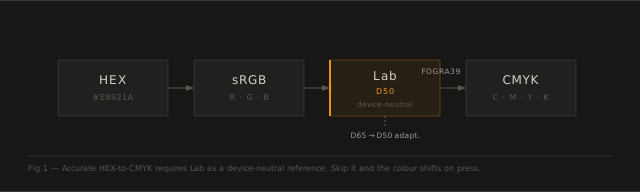
The uicorn Color Converter does all three steps automatically, including the D50 illuminant adaptation (Fogra uses D50, not D65 which sRGB uses by default).
What Lab D50 means
Lab color is defined relative to a white point. Two common white points are used in design workflows:
- D65 — daylight at noon, used as sRGB’s white point, used in most digital contexts
- D50 — slightly warmer, used as the reference for print and ICC profiles
When converting from sRGB to CMYK for print, you must adapt from D65 to D50 first — otherwise the white point mismatch introduces a visible warm/cool shift. This adaptation is called a chromatic adaptation transform (CAT), and the standard one is Bradford CAT.
Most online color converters skip the D50 adaptation and give you wrong Lab values for print work. The uicorn converter uses the full Bradford CAT and reports Lab in D50 explicitly.
Rich black vs pure black
For headlines and large type in print, designers often use rich black instead of pure K:100. Rich black mixes all four channels to produce a denser, deeper black on press.
A common recipe: C:60 M:40 Y:40 K:100. However, too much total ink causes problems — wet ink on uncoated paper can bleed, and total ink coverage (TIC) limits apply (typically 300% for coated, 260% for uncoated).
For body text, always use pure K:100. The slight density gain of rich black does not justify the registration risk at small sizes — if the four plates are even 0.1mm misaligned, fine text becomes blurry.
Working with the Color Converter
The tool has three sections: Color Selection, Color Values, and Color Harmonies.
Color Selection — pick a color. Use the HSB wheel for visual exploration, the CMYK sliders if you are starting from a print brief, the HEX / RGB input for screen colors, or the Lab D50 sliders if you are reading values directly from Photoshop or a spectrophotometer. All inputs converge on the same state — change one and the others update.
Color Values — read the output. The Lab D50 value is the device-independent reference — it describes the color as perceived, regardless of substrate or device. The CMYK panel lets you switch between sRGB (mathematical), Fogra39, Fogra51 and SWOP v2 to see how the ink recipe shifts per press condition. Copy any value directly to clipboard.
Note on ICC accuracy. The Fogra and SWOP values in this tool are simulated from a 16-corner lookup table — a coarse approximation of a real ICC profile. Solid primary inks typically fall within ±2–3 ΔE; mixed and midtone colors can deviate ±10–20 ΔE. Use these values as a directional guide. For production CMYK, assign the ICC profile in Photoshop or Illustrator and soft-proof there.
Color Harmonies — build a palette. Six theory-based palettes on the Itten RYB wheel are available (complementary, analogous, triadic, split-complementary, tetradic, monochromatic). They update automatically when you change the base color. Each has a → Copy to Custom button to move the current harmony to the Custom editor. The Custom tab lets you build a free-form palette of up to six colors: click + to add the current wheel color, click any swatch to select and live-edit it, and give each color a name — names carry through to all exports.
Export options. Before downloading, choose whether to include RGB/HEX, CMYK (profile-matched), or both via the checkboxes. The ASE export packages all colors for direct import into Illustrator, InDesign or Photoshop via the Swatches panel. CSS exports named custom properties. JSON and SVG are also available.
Run your brand colors through the CMYK / HEX / Lab Converter to get print-ready values with ICC profile approximation.